Dual Currency
Price in USD, EGP, or both at once
Paid Memberships
Monthly & yearly billing with auto-savings
Native Coupons
Scoped discounts with usage tracking
Earnings Dashboard
Revenue, payouts, and balance at a glance
Paid Sessions & Rooms

Charge for any session with one toggle.

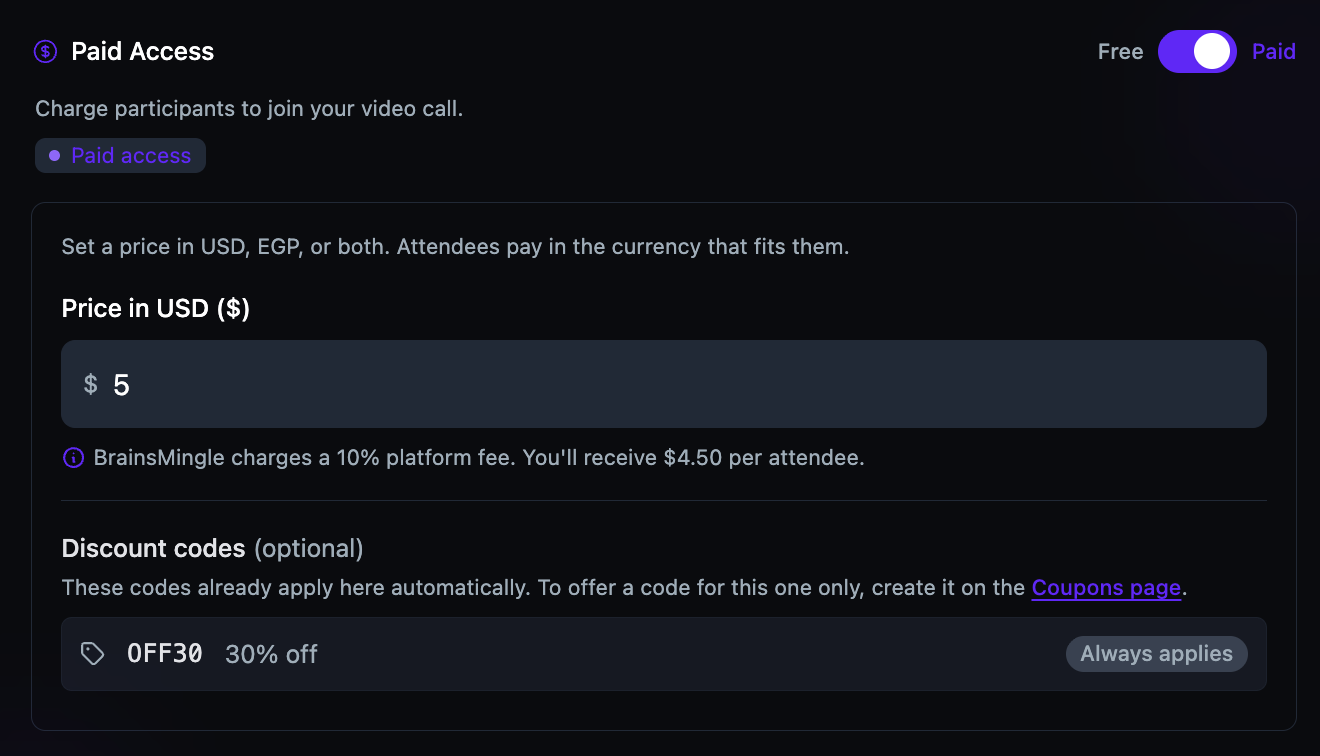
Set a ticket price when creating a video session or speed networking room. Toggle from Free to Paid, enter your price, and the platform handles payment collection. Attendees pay before they join — you see the net amount after the platform fee.

  • Dual currency — set prices in USD, EGP, or both. Attendees pay in the currency that fits them.
  • Transparent fees — the net amount you receive per attendee is displayed below the price field.
  • Video sessions & networking rooms — the same pricing flow works for both session types.
Paid Access enabled showing a price field in USD set to 5 dollars, a note about the 10% platform fee and 4.50 net per attendee, and a discount code applying automatically
Paid Access enabled — price field with net earnings breakdown
Paid Memberships

Charge a subscription for your community.

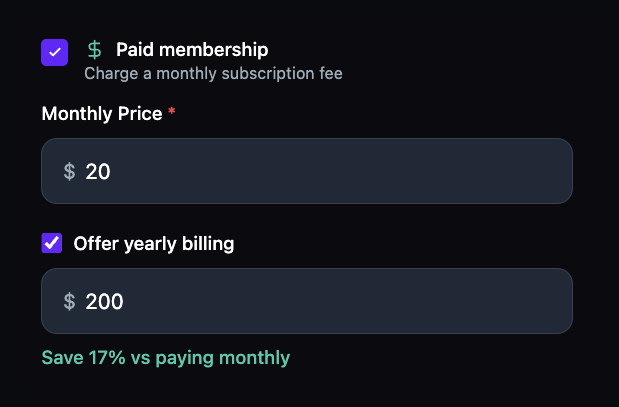
Enable paid membership when creating or editing a community. Set a monthly price, optionally offer a yearly plan at a discount, and the platform handles recurring billing. Members see the savings percentage automatically calculated.

  • Monthly billing — set a recurring monthly price in USD.
  • Yearly billing — offer an annual option with automatic savings display (e.g., "Save 17%").
  • Update anytime — change pricing from community settings. Existing members keep their current billing cycle until renewal.
The Create Space dialog with yearly billing enabled, showing a Monthly Price of $20, a Yearly Price of $200, and a Save 17% label
Paid membership — monthly and yearly billing with automatic savings calculation
Stripe Integration

Connect once, get paid automatically.

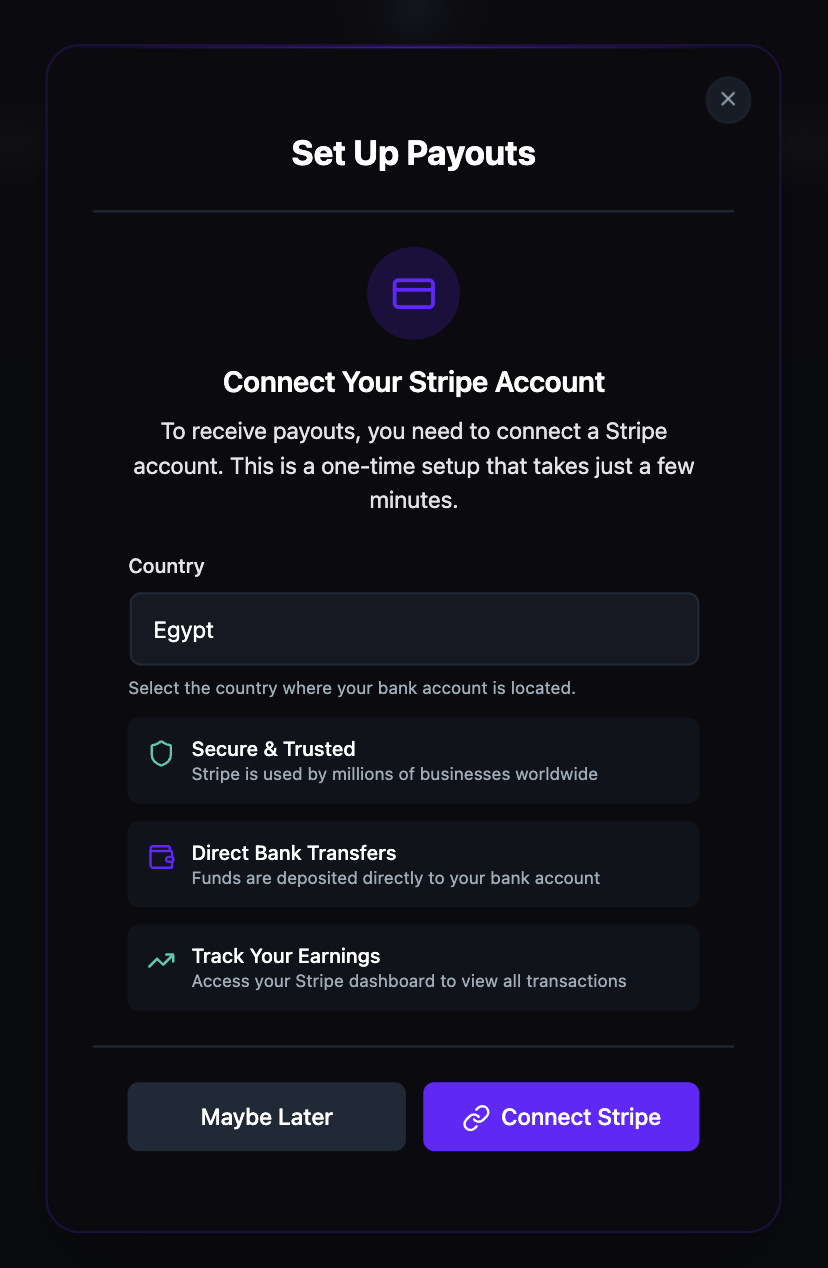
Link your Stripe account in under two minutes. Select your country, complete Stripe's verification, and you're set. Payouts for paid sessions, consultations, and memberships are deposited directly to your bank account — no manual invoicing, no chasing payments.

  • One-time setup — connect Stripe once from the My Earnings page and you're ready to receive payouts.
  • Global coverage — available in all Stripe-supported countries.
  • Direct deposit — payouts go straight to your bank account after verification.
The Set Up Payouts modal for connecting a Stripe account, with a country selector set to Egypt, notes on secure transfers and direct bank deposits, and Maybe Later and Connect Stripe buttons
The Set Up Payouts modal — select your country and connect Stripe
Earnings Dashboard

See everything you've earned in one place.

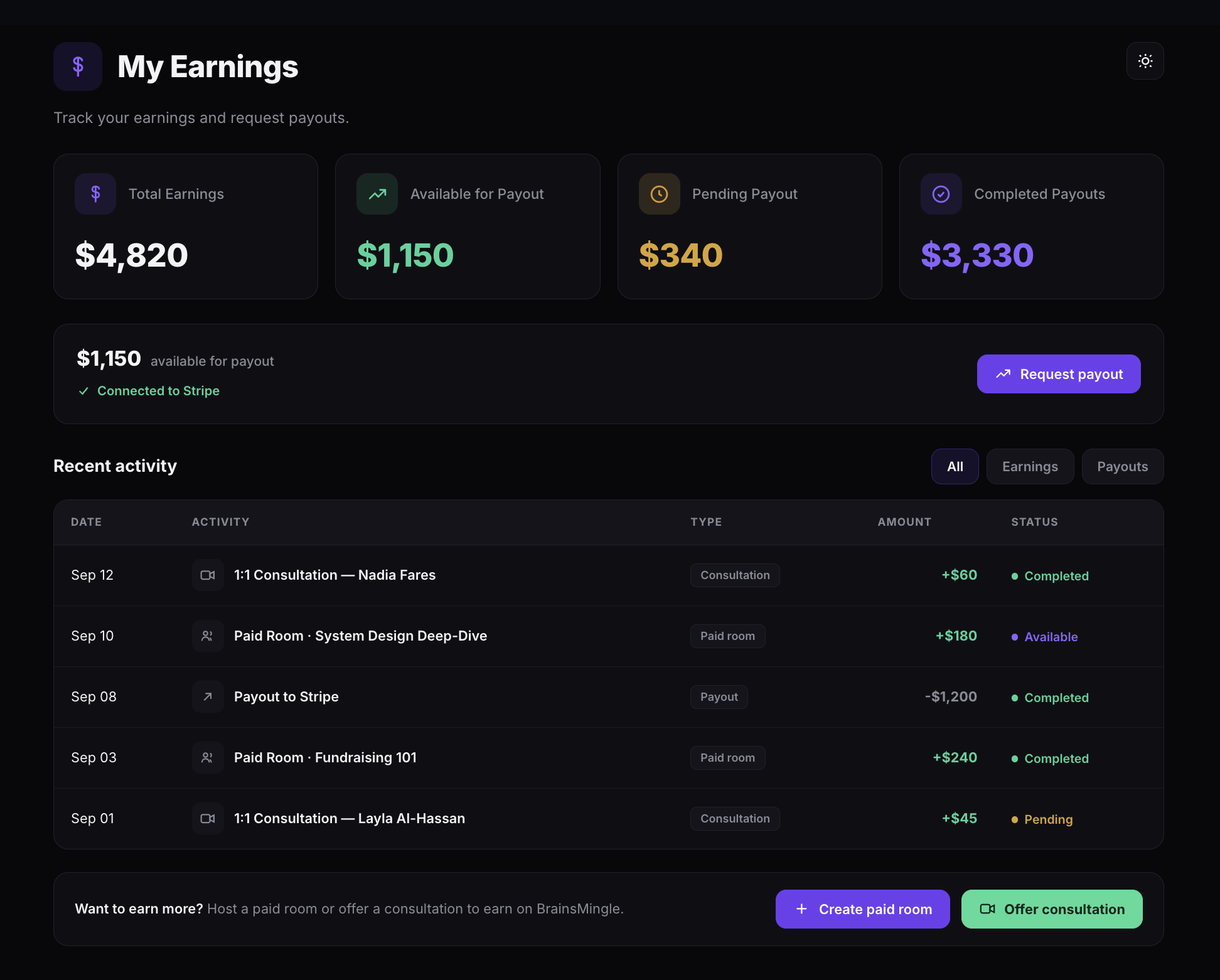
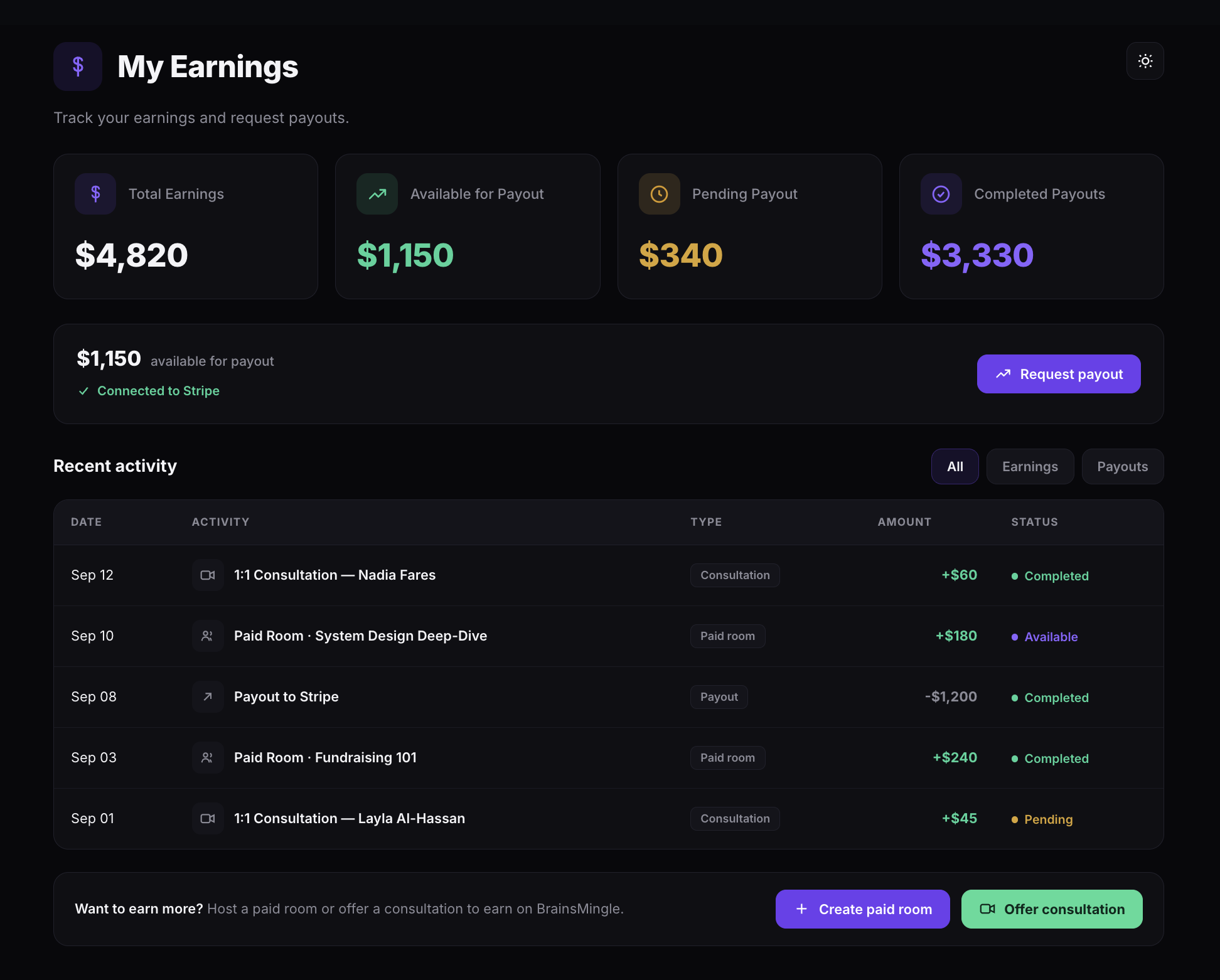
The My Earnings page shows four real-time metrics: Total Earnings, Available for Payout, Pending Payout, and Completed Payouts. Below them, an itemized activity log tracks every earning and payout, and you can request a transfer to Stripe whenever a balance is available. From the same page, create a paid room or offer a consultation to start earning.

  • Four key metrics — Total Earnings, Available for Payout, Pending Payout, and Completed Payouts.
  • Itemized activity log — every earning and payout logged with date, type, amount, and status, filterable by earnings or payouts.
  • Request payouts — transfer to your connected Stripe account whenever a balance is available.
  • Quick actions — create a paid room or offer a consultation directly from the dashboard.
The My Earnings dashboard showing Total Earnings, Available for Payout, Pending Payout, and Completed Payouts cards, a Connected to Stripe status with a Request payout button, and a Recent activity table of earnings and payouts
The My Earnings dashboard — four metrics, a payout request, and an itemized activity log
Native Coupons

Create targeted discounts with full control.

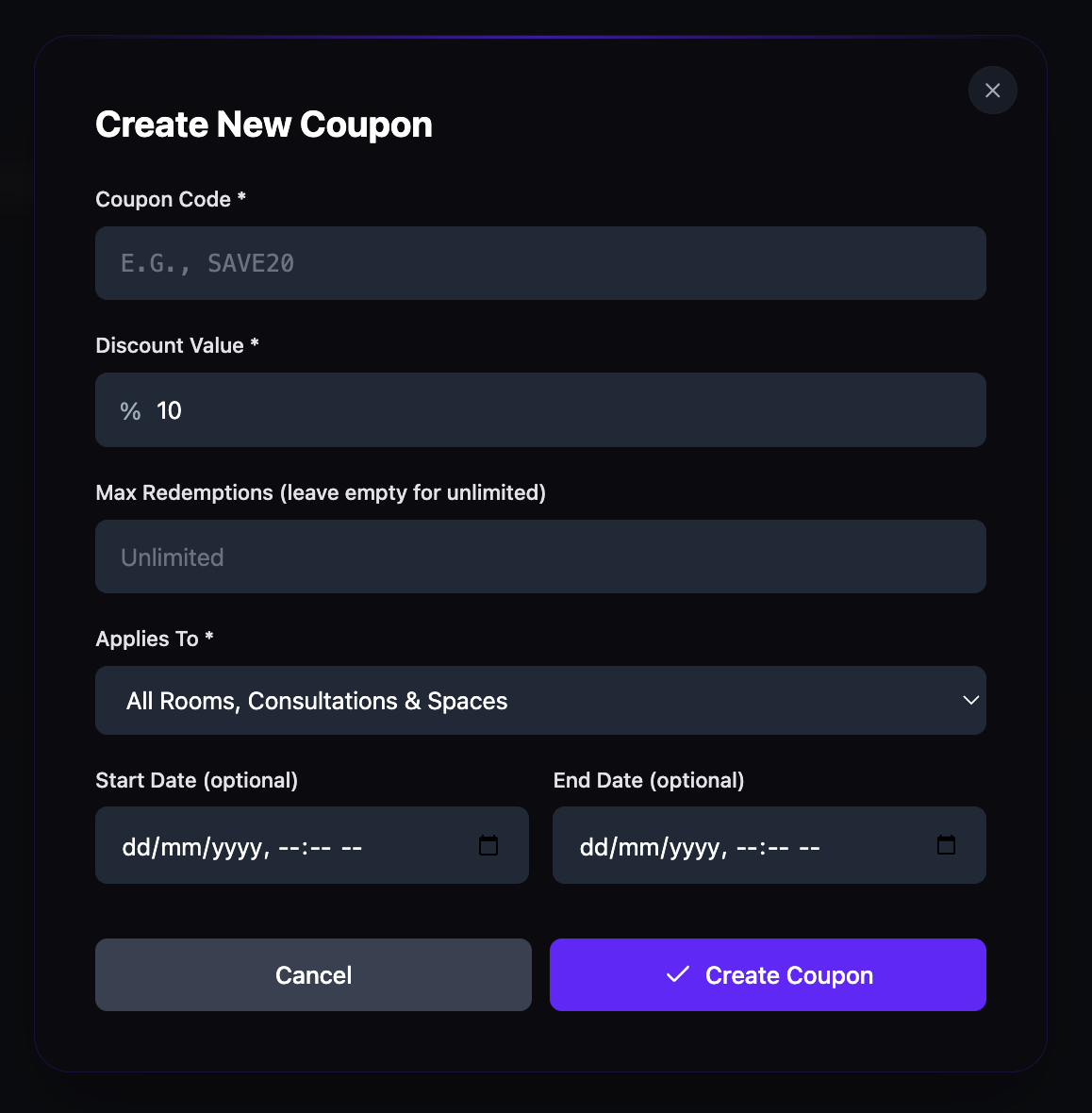
Build discount codes scoped to specific rooms, consultations, or communities — or apply them across everything. Set a percentage discount, cap redemptions or leave them unlimited, and add optional start and end dates.

  • Custom code & percentage — set your own code (e.g. SAVE20) and a percentage discount value.
  • Limits & scope — cap total redemptions or leave unlimited, and apply to everything or to specific rooms, consultations, and communities.
  • Validity window — add optional start and end dates, or leave open for indefinite use.
The Create New Coupon dialog with fields for Coupon Code, Discount Value, Max Redemptions, Applies To, Start Date, and End Date
The coupon builder — code, discount, scope, redemption limits, and validity dates
Coupon Management

Search, filter, and manage every coupon.

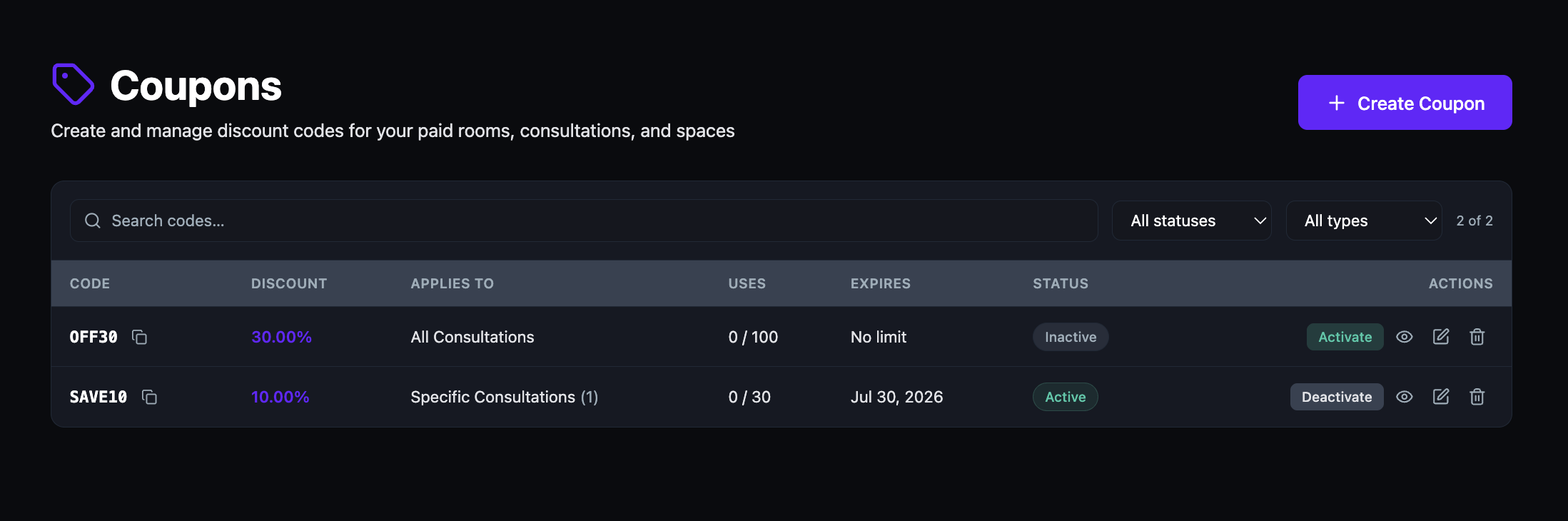
All your coupons appear in a single table with code, discount, scope, usage count, expiry, and status. Search by code, filter by status or type, and take action with one click — view usage details, edit settings, or deactivate a coupon without deleting it.

  • Search & filter — find coupons by code, active/inactive status, or scope type.
  • One-click copy — copy any coupon code to your clipboard and share it instantly.
  • Non-destructive controls — deactivate a coupon to pause it instead of deleting permanently.
The Coupons list showing two coupons, OFF30 and SAVE10, with codes, discounts, scope, usage counts, expiry dates, Active or Inactive statuses, and action buttons
The coupons management table — status, usage, and quick actions