Structured Programs
Group courses under a single program title
Video & Text Lessons
Upload MP4s, embed YouTube, or write rich text
Certification
Automated certificates with custom designs
Learner Analytics
Track enrollment, completion, and learning hours
Structured Programs

Organize courses into structured programs.

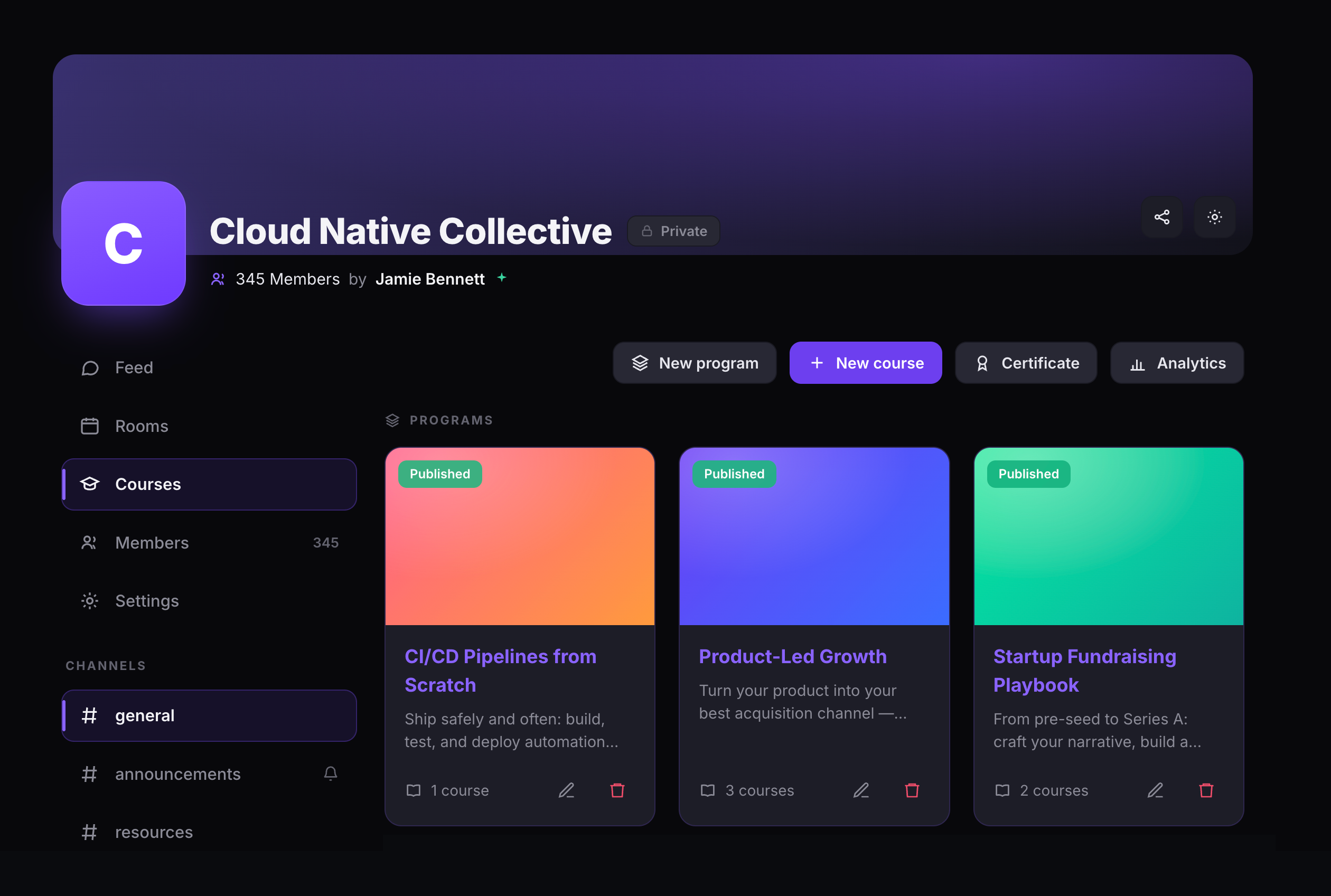
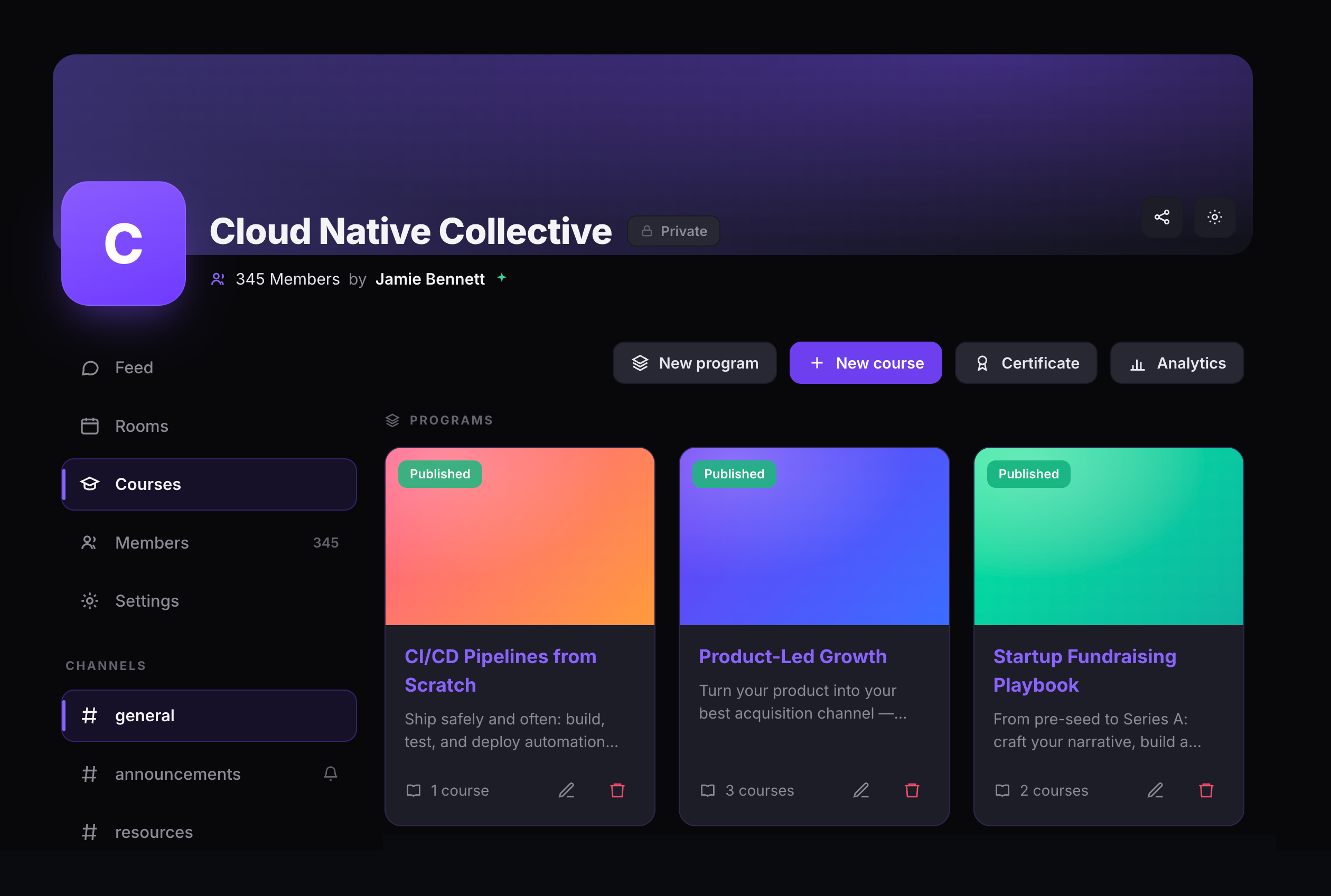
Create a program, add courses to it, and fill each course with lessons. Learners enroll once and access every course in one place. Programs appear as branded cards with cover images, descriptions, and course counts — ready to browse and start learning.

  • Programs & standalone courses — group related courses under a program or create standalone courses that exist independently.
  • Draft & Published — build in draft mode until everything is ready, then publish to make it visible to learners.
  • Cover images & descriptions — every program and course has its own branded card with visual identity.
  • One management header — create programs and courses, configure certificates, and open analytics from a single toolbar.
The Courses tab of a community showing three published programs as branded cover cards, each with a description and course count, above a header with New program, New course, Certificate, and Analytics actions
The Courses tab — published programs as branded cards with cover images, descriptions, and course counts
Course Management

Add as many courses as your program needs.

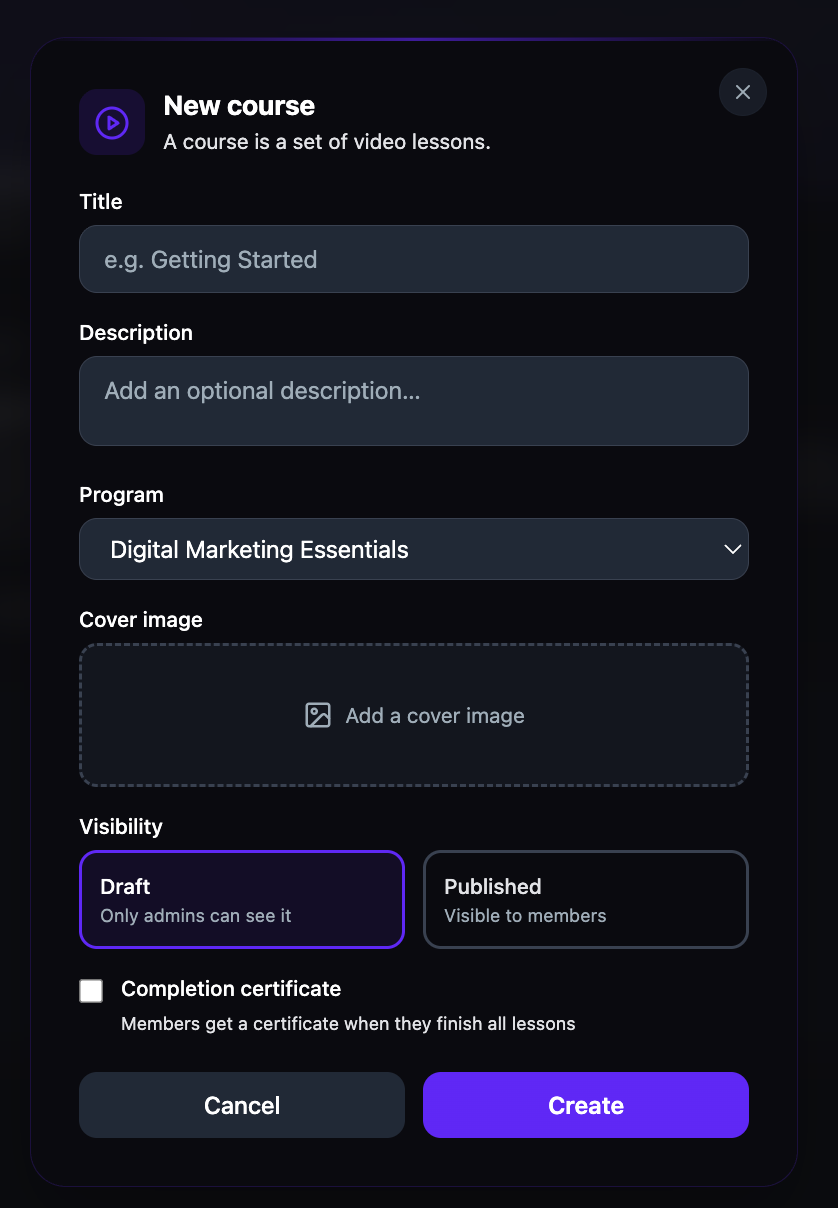
Each program holds unlimited courses. Assign a course to a program or let it stand alone. Set visibility, add cover images, and optionally enable completion certificates — all from the course creation dialog.

  • Program assignment — assign courses to any existing program or keep them standalone.
  • Completion certificate toggle — enable per-course certificates that are awarded when all lessons are completed.
  • Unlimited courses — no cap on how many courses you can create.
The New course dialog showing Title, Description, Program dropdown, Cover image upload, Visibility options, and Completion certificate checkbox
The New course dialog — program assignment, visibility, and certificate toggle
Video Lessons

Upload videos or embed from YouTube and Vimeo.

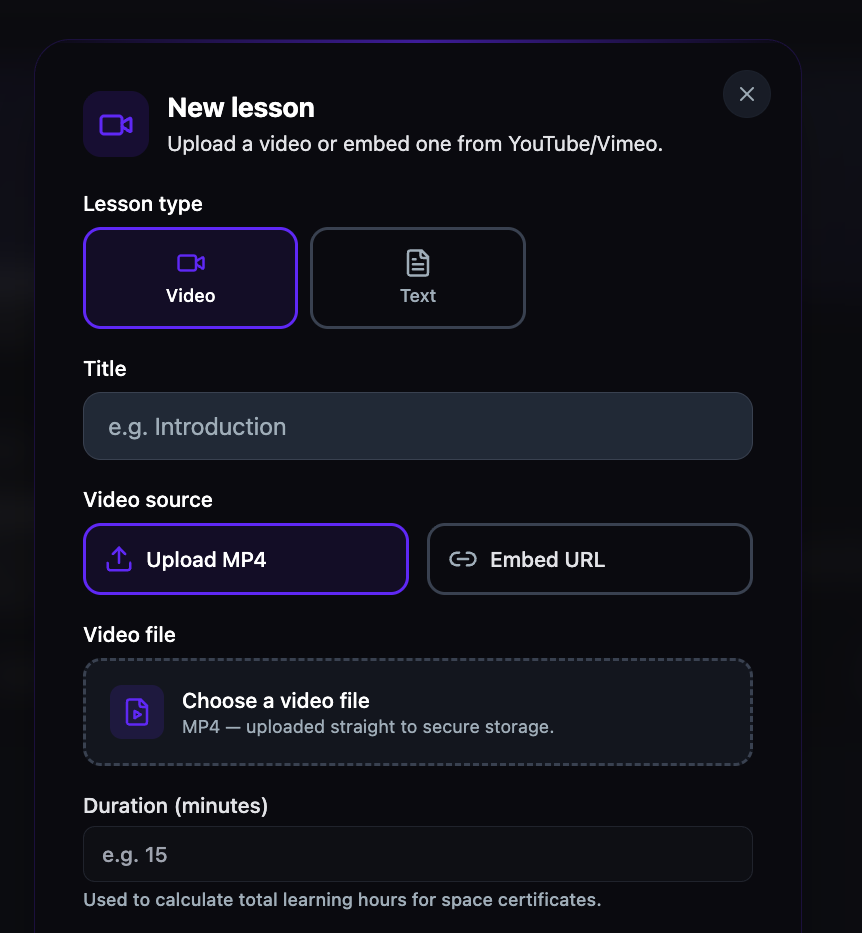
Add video lessons by uploading MP4 files directly to secure storage or by pasting an embed link from YouTube or Vimeo. Set a duration for each lesson — it feeds into total learning hours for certification. Every uploaded video is stored securely on the platform.

  • Direct upload — upload MP4 files to secure, platform-managed storage.
  • Embed URL — paste an unlisted YouTube or Vimeo link for externally hosted content.
  • Duration tracking — set minutes per lesson to calculate total learning hours across the program.
The New lesson dialog with Video type selected and Upload MP4 chosen, showing a video file upload area and a Duration field
The New lesson dialog, Video type — Upload MP4 or Embed URL, plus a duration field for learning hours
Text Lessons

Write lessons with a full rich text editor.

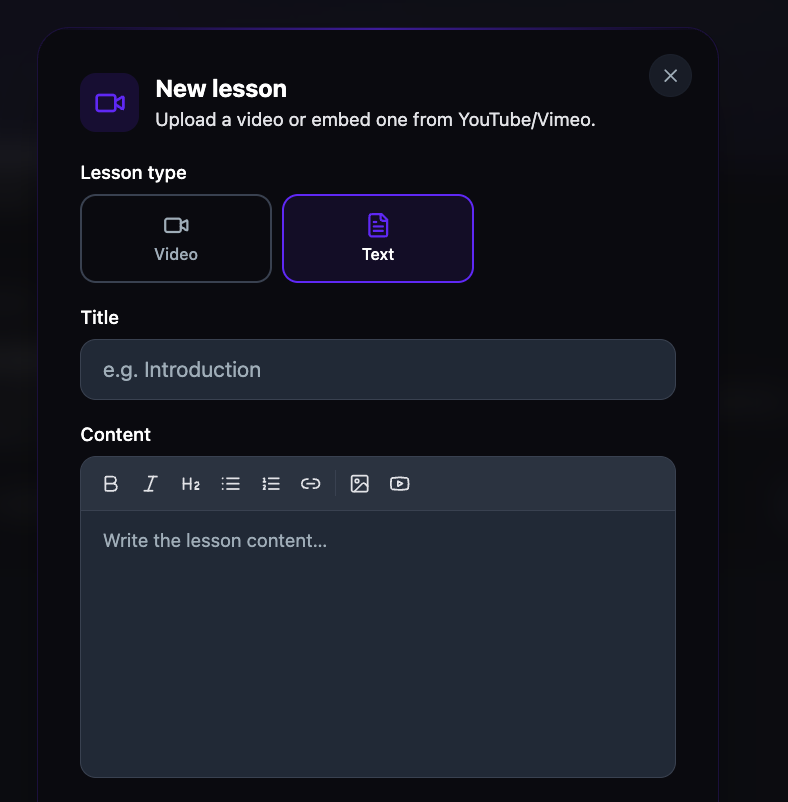
Not every lesson needs a video. Create text-based lessons using the built-in rich text editor — format with bold, italic, and headings, add links, embed images and videos, and structure content exactly the way your subject matter requires.

  • Rich formatting — bold, italic, headings, lists, links, images, and embedded videos.
  • Mixed lesson types — combine video and text lessons in the same course for a blended experience.
  • Video or Text per lesson — switch lesson type from the same dialog, so each lesson uses the right format.
The New lesson dialog with Text type selected, showing a Title field and a rich text editor with a formatting toolbar for bold, italic, headings, lists, links, images, and video embed
The New lesson dialog, Text type — rich text editor with bold, headings, links, images, and video embed
Certification

Award certificates automatically when learners finish.

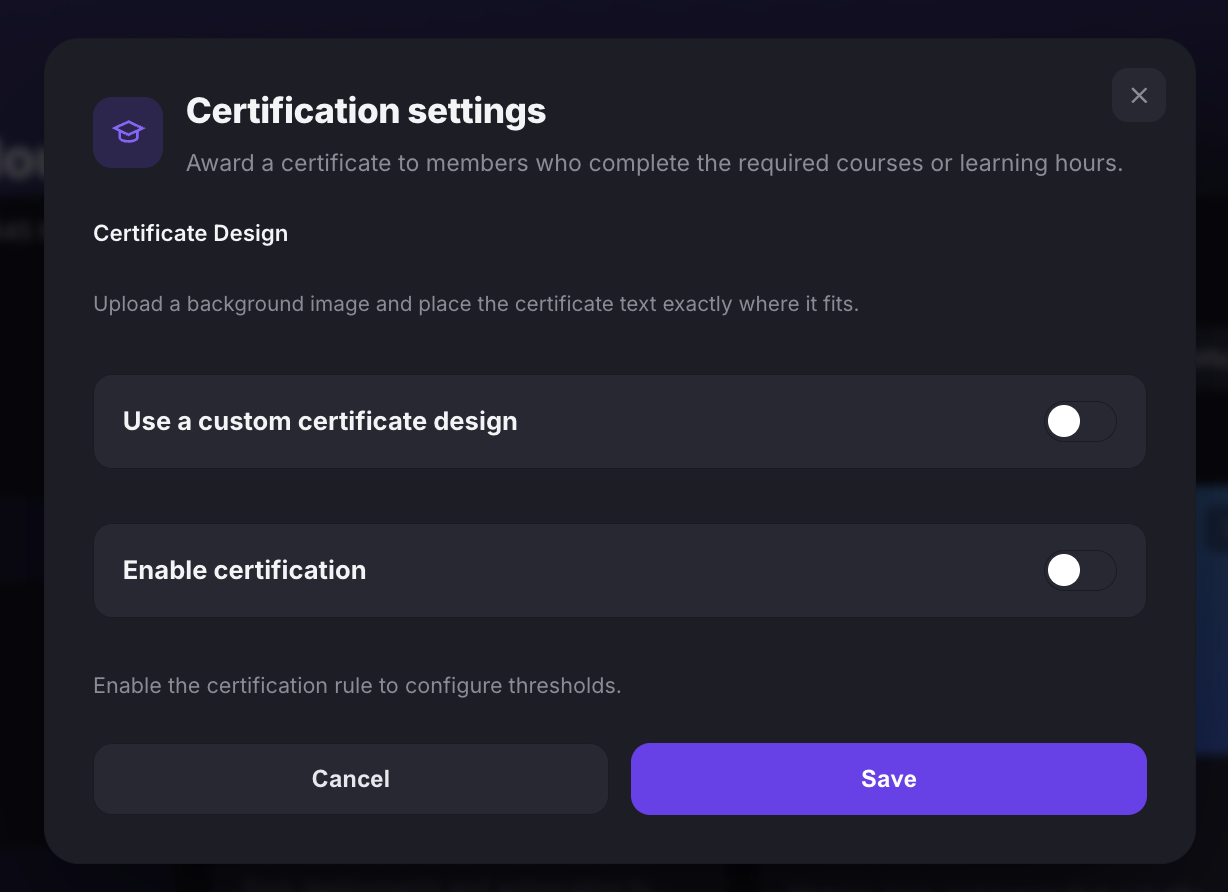
Turn on the certification rule to award a certificate to members who complete the required courses or learning hours. Upload a custom background and place the certificate text exactly where it fits, then set completion thresholds — minimum courses, minimum hours, or both. The platform issues certificates automatically when a learner meets either threshold, each with a unique ID and verification link.

  • Custom certificate design — upload a branded background image and position the certificate text to fit it.
  • Flexible thresholds — set minimum courses, minimum hours, or both. Meet either and the certificate is issued.
  • Verifiable — every certificate includes a unique ID and verification link for third-party validation.
The Certification settings dialog with a Use a custom certificate design toggle and an Enable certification toggle, both off, above Cancel and Save actions
Certification settings — switch on a custom design, then enable the certification rule to configure thresholds
Learner Analytics

See exactly where every learner stands.

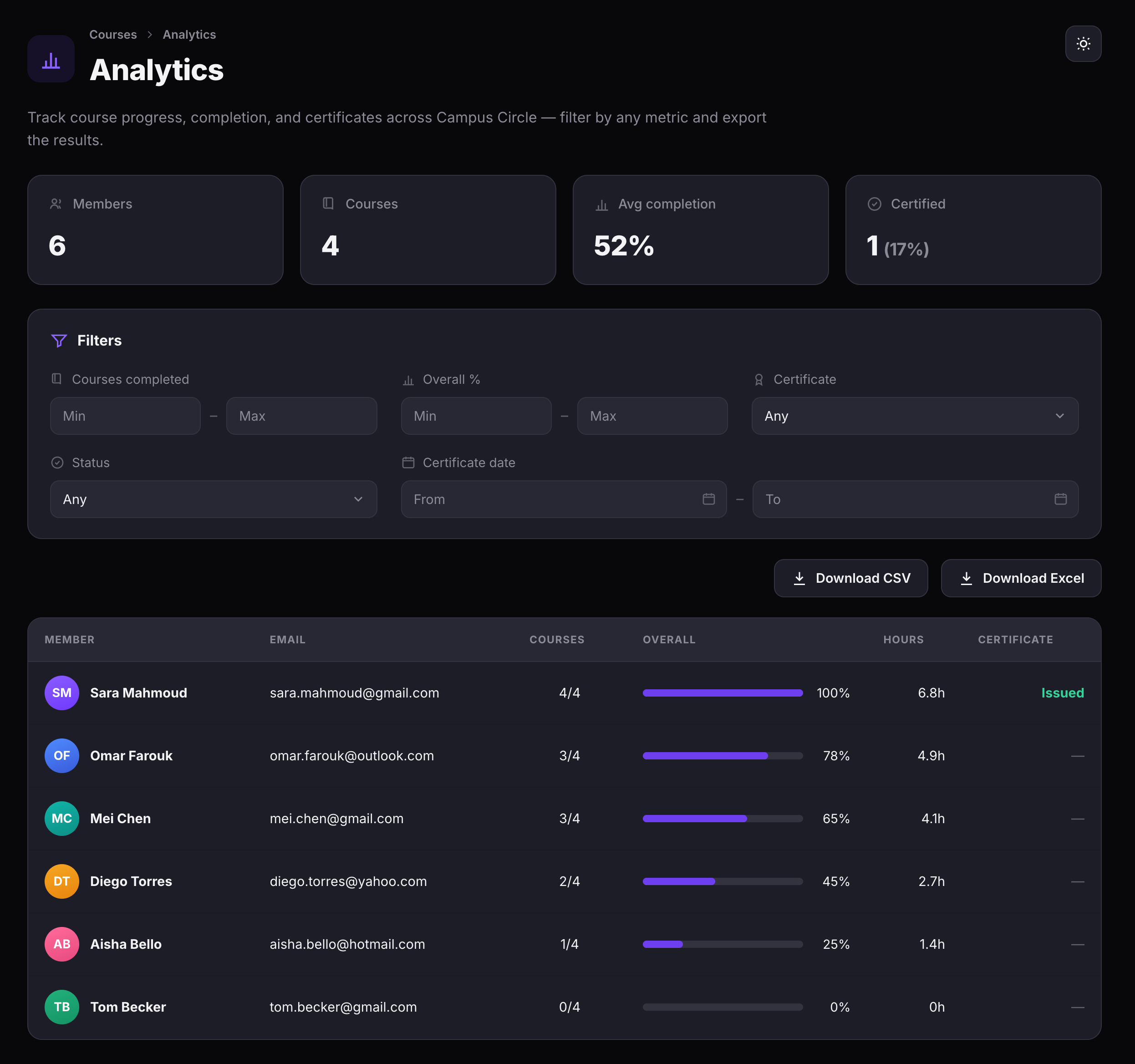
Two levels of analytics — all-courses and per-course. The all-courses dashboard shows total members, course count, average completion, and certification rate across your entire program. Drill into any course to see individual learner progress, course completion counts, learning hours, and certificate status.

  • Summary cards — Members, Courses, Avg completion, and Certified at a glance.
  • Filters — narrow by courses completed, overall percentage, certificate status, or date range.
  • Export — download learner data as CSV or Excel for reporting or offline review.
The all-courses analytics dashboard showing Members, Courses, Avg completion, and Certified summary cards, a filters panel, CSV and Excel export buttons, and a member progress table with courses, overall percentage, hours, and certificate status
The all-courses analytics dashboard — summary cards, filters, export, and the member progress table